Monday, September 5, 2016

Insert Smart Art into a spreadsheet, Excel 2010

SmartArt shows information visible, you can quickly and easily. By choosing graphics from a variety of layouts to communicate your ideas effectively and SmartArt. It is a simple Diagram showing the data in the form of pictures or graphics that were sequenced. It shows the relationship of data Making it easier to understand. Allowing you to create documents or information to be more prominent.

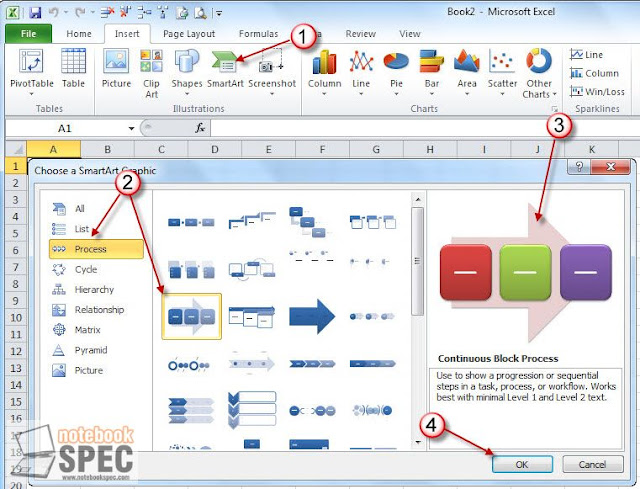
1. documents in Excel? You work Ribbon, click the Insert menu and then click on the SmartArt.
2. Click the graphic you want.
3. There will be a preview and remediation by the graphics of your choice.
4. When selecting the graphic, then click OK.

5. Next, you enter text. As you want to convey to the graphics selected.
6. Can you also choose to display the Styles by choosing such a topic? SmartArt Styles


7.Excel also lets you customize the color you like by clicking the Change Colors and then click Choose a different color.


Paginated with Microsoft Office Excel 2010.

Most Excel users when working with large files back. There are several information sheets I want to insert page numbers. To prevent a similar confusion When used for a long time It can be done as follows:
1. Go to the Insert ribbon tab and click the Header & Footer.


2. Click the Insert Page Number to Number. It is evident that the position of the sheet with the letters Header & [Page] appears.


3. Click the mouse on the rest of the sheet is not it? Header will appear on the page number. When the mouse Gaul page sheet, it will be all the page numbers on every page.


4. In case it is not like the page number on the top (Header) to insert a number below (Footer), then click the Footer.
5. Insert a text message with a list of numbers. Please check requirements


When the mouse scroll Gaul sheet down below you will find the page number. Format Selected

Squeeze resized image Microsoft Office? Excel 2010

In working with documents, Excel 2010, sometimes we need to attach an image file into the worksheet. This makes the file size larger. And if there is a need to send files via e - mail makes it difficult to deliver. The attachment is larger in Excel 2010, you can reduce file size, image files in Excel? As this

1. Click on the images in Excel? To reduce the file size of images
2. Then click on Compress Pictures.


3. Compress Pictures to configure a window opens. The details are as follows
Compression options:
Apply only to this picture? Compressing images, only this
Did delete crop areas of pictures? Delete the cropped image on the left.
Target output ::
E-mail (96 ppm): minimize document size for sharing? The minimum size for sharing via email.
Use document resolution? The resolution of the document


4. When the then click OK.


Create a macro name at the top (Header) of documents Microsoft Office? Excel 2010

For users working with documents, Excel 2010 to the documents furnished to look good. It is usually the name of the document or the company name or the other. Do you want the top of the document called Header? If we do, many documents and pieces to put together Header whenever it is working with too many steps. In order to facilitate the work, We create macros for Excel Header text that we want to be. Just press the key once Header of the document will be displayed as well.

1. Open Excel, click on the Ribbon? View and then click on the small arrow button Macros, select the Record Macro


2. On the Record Macro window Macro name: Please name your macro.
3. Shortcut key put the English alphabet. To take a shortcut to the macro function.
4.Store macro in a system that will store the macro in any place.

Personal Macro Workbook? Stored in the server's books.
New Workbook? Keep in Kraftwerk's new book.
The Workbook? Keep in Kraftwerk book that is being used.


5.Description: the details of our macro.
6. Enter values Click OK, it's done
7. Click OK and Excel will begin recording the macro and the six of us. Ribbon, click the Insert menu, click Header & Footer.


8. Do we want to put a name in the Header? When finished, click retire Header (any cell of the cell sheet).
9. Click on the small square. At the bottom left, It will stop recording macro


If we put the following Header created in an Excel document, just press the shortcut key that is set in step 3 The header that we created, it appears that the document Excel.

Office 2010 Tip: Divide the text from one column to a second column (Excel)

If there are cells of Excel and last name combinations. But we need to split into 2 separate first and last names in Excel 2010, you can do the following.

1. Drag a hi-light text in cells.
2. Click on the Data ribbon tab and click Text to Columns.


3. The separate nature of the information, click Delimited.
4. Click Next


5. Next, click Space to indicate that the gap between the share name with the name of Gul.
6. Then, the sample is divided in the Data preview.
7. Click Next


8. The format of the data. Click here in General
9. Click Finish


10. Returning to the next Howard Sheets. It is evident that the first column is divided into two columns.


Saturday, September 3, 2016

An interesting feature of excel 2010.

The program Excel 2013 can be considered a change from previous versions moderate what's most noticeable is the shift to tape File represent the office also added capabilities in many areas, whether it is supported by Tech Watch. math worksheet in the ability to display graphics in the muscle cell to preview the results before and so on. Advanced features of excel 2010 to note the following.

TapFile and Backstage View
Change of use from the department office is barely cotton and compared against us, they will find a new model called backstage view, which presents the sort order of the categories used for the opening and closing documents, create new documents, as well. the Apply program

You can customize the Ribbon, then
Version 2017 ribbon is a form of job creation to replace the menu template is easy to use, convenient, but also can be customized and modified the version of 2010 can be modified Ribbon in style as the rank test. you can show or hide groups of various tools including the ability to create a statute or in the form of an individual right, and if you want to use, reborn in its original form, it has a reset button to revert to the format standard. when

Enhance the template
In this new version will focus on the download template from the Microsoft Web site where you can download as many call-to-use templates each time to record the history of the template put it out the next time you use the template. originally, it can be used immediately in the event that created the template user can then run the template, the more quickly it is taken to include in the group's entire template.

Selected papers from AutoSave
excel can save documents automatically at set intervals, such as 10 minutes, if the computer has a problem, or accidentally delete something by mistake, you can import the excel recorded automatically replace the current data, which excel 2010 has improved. formed to run the system AutoSave excel easier than past versions.

PDF file to save For easy 
PDF file is considered a document popular applications widely tri As can be seen from the device on the computer, be it a laptop, mp3 player, or the network that the manufacturers of premium seats. This documentation is used

Update Conditional Formatting
conditional formatting as a way to customize my new customizable season or theme of the cell automatically based on the information contained within the cell, such as a server at a minimum over the top of the light is red, meaning higher. the wooden handle, a green target, or if it will be shown as yellow, for in excel 2010 has added features to operate the advantages Foreman left the field to a wider variety show as icons or pictures, as well as the ability to create rules. to compare up easily.